![PV_LOGO_HORZ_RGBHEX_LIGHT-1.png]](https://24425282.hs-sites.com/hs-fs/hubfs/PV_LOGO_HORZ_RGBHEX_LIGHT-1.png?height=40&name=PV_LOGO_HORZ_RGBHEX_LIGHT-1.png)
To share a photo gallery with an external user (outside of our PRIME VACATIONS Microsoft organization), please follow these steps:
- Go to this SharePoint folder: External User Photo Share
- The folders are organized by "Address - Property name"
- Locate the gallery you wish to share (I am using 2109 Avenue C - Luna Sea as our example)
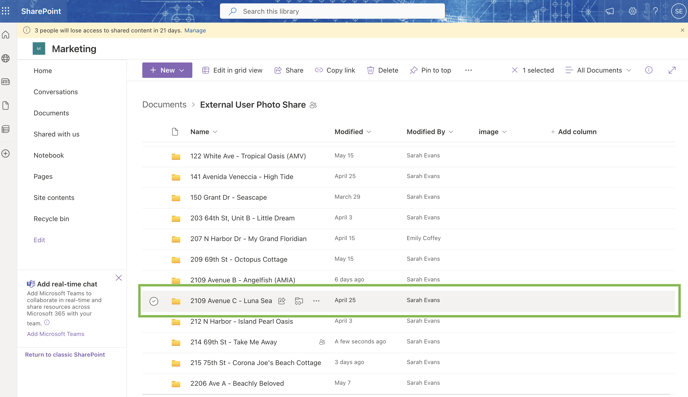
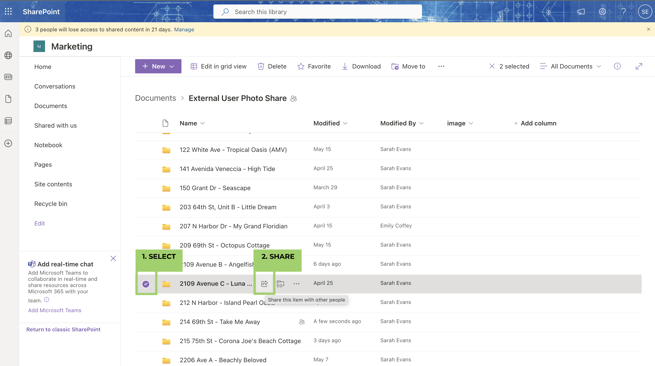
- Select this gallery (Step #1.) and Share (Step #2.) by clicking the icon that looks like an arrow with a box around it
- When you click "share" you will be prompted to enter an email address in this pop-up window. Type it in this format: name@email.com and hit "enter" on your keyboard.

- The screenshot below shows what you will see next in this pop-up window. Notice two things; the "eye" icon on the right, which means View Access. This is correct. The recipient will be able to view and download the images but not alter the gallery. You also will see the "i" warning - the email address is outside of your organization. This is also correct.

- Next, add a message asking the recipient to click the link directly from this email to access the photo gallery and download a copy of the images. The user link generated and sent is tied to the recipient's specific email address and will not work if shared with anyone else.
- Click "Send." Success!
If you have any issues or the gallery you are searching for is not yet available to share, please submit a Marketing Support Ticket.